Print on Fabricard cardstock: my exact Epson ET-8500 setup
This is my setup for printing MTG proxies directly on Fabricard black core cardstock. I print, let the sheets dry, cut them into strips and punch the cards. No lamination is needed. The screenshots below show my driver and Fabricard export settings.
My driver runs in German; every setting below quotes the German label (umlauts written as ae/oe/ue) with an English translation next to it.
The cardstock I use
Fabricard CORE Silk 313
Black core cardstock, about 313 g/m², printable on both sides, with a silk/satin finish. This is the paper for the setup on this page.
Fabricard HOLO Prism 343
The same settings work for HOLO Prism 343, with a holographic front and a matte white back.
View Fabricard cardstock on Etsy
Currently ships to: Germany, Netherlands, Spain, Italy, France
Hardware and materials
Printer
Epson EcoTank ET-8500. This is the printer I tested, using the rear paper feed.
Paper
Fabricard CORE Silk 313, A4 black core cardstock, printable on both sides. Fronts and backs go on the same sheet in two passes.
Rotary trimmer
A Dahle 507 rotary trimmer cuts the dry sheet into strips of three cards each, so the strips fit into the die cutter.
Die cutter
A card-size die cutter punches each card to 63 x 88 mm with rounded corners in one stroke. That is why my sheets need no cut guides.
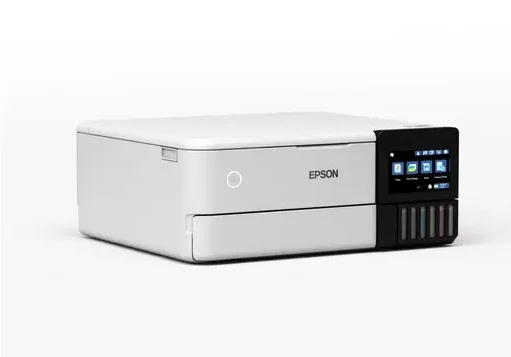
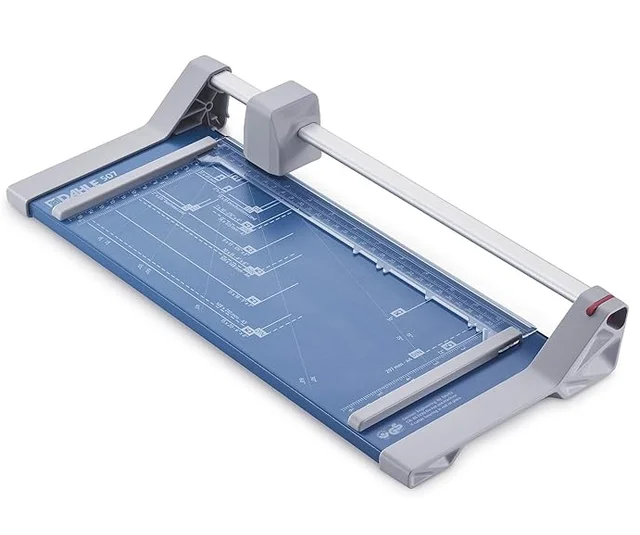
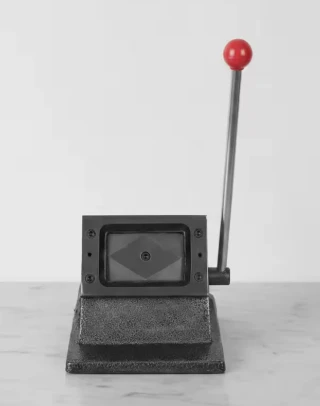
Epson driver settings, step by step
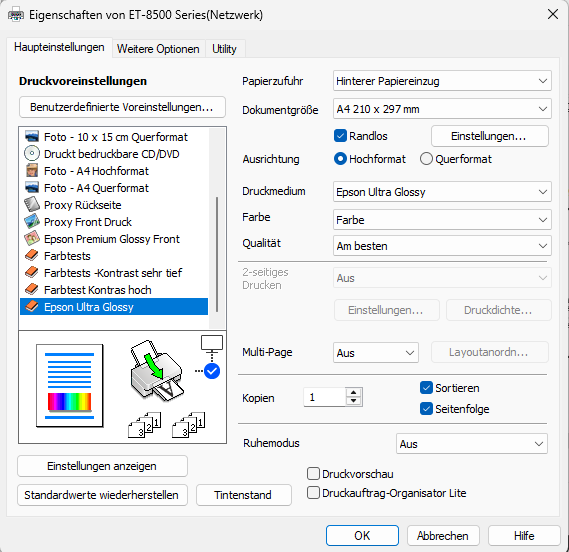
Open the printer properties from the print dialog. On the first tab, Haupteinstellungen (main settings), set:
- Papierzufuhr (paper source): Hinterer Papiereinzug (rear paper feed).
- Dokumentgroesse (document size): A4 210 x 297 mm.
- Randlos (borderless): ON.
- Ausrichtung (orientation): Hochformat (portrait).
- Druckmedium (media type): Epson Ultra Glossy.
- Farbe (color): Farbe (color).
- Qualitaet (quality): Am besten (best).
- 2-seitiges Drucken (two-sided printing): Aus (off).
- Multi-Page: Aus (off).
- Driver preset shown: "Epson Ultra Glossy".
On the second tab, Weitere Optionen (more options):
- Farbkorrektur (color correction): Benutzerdefiniert (custom).
- Bidirektionales Drucken (bidirectional printing): OFF.
- Bild spiegeln (mirror image): OFF.
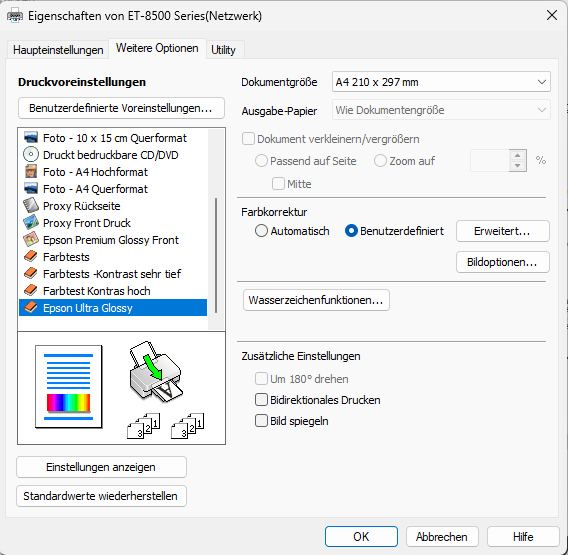
These are the differences from my photo paper and lamination setup:
- Rear paper feed instead of cassette 2.
- Epson Ultra Glossy instead of Epson Premium Glossy.
- Quality Am besten instead of Stark.
- Bidirectional printing OFF instead of ON.
Color correction and image options
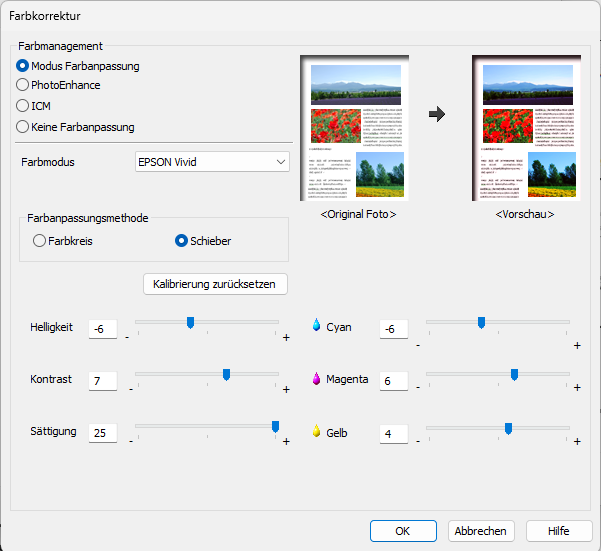
Open Farbkorrektur > Erweitert (color correction > advanced). I use the same color values as in the lamination guide; its color calibration section explains the adjustments.
- Modus (mode): Farbanpassung (color adjustment).
- Farbmodus (color mode): EPSON Vivid; Schieber (sliders).
- Helligkeit (brightness): -6.
- Kontrast (contrast): 7.
- Saettigung (saturation): 25.
- Cyan: -6; Magenta: 6; Gelb (yellow): 4.
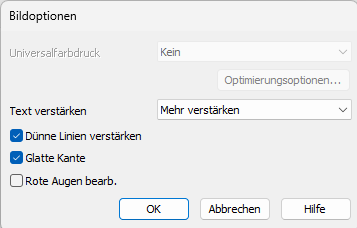
Under Bildoptionen (image options):
- Text verstaerken (emphasize text): Mehr verstaerken (more).
- Duenne Linien verstaerken (emphasize thin lines): ON.
- Glatte Kante (edge smoothing): ON.
Fabricard export settings: front and back
I use Fabricard to export one file with front and back pages. This is the configuration shown in my sidebar:
- Export tier: Maximum (for high-res uploads), 900 DPI.
- Export action: Duplex PDF (fronts + backs). Use this button to create the duplex file.
- Flip edge: Long edge flip.
- Paper format: DIN A4 (210x297mm), portrait.
- Gap: 2,0 mm; Bleed: 1,0 mm.
- Bleed on card backs: ON.
- Cut Guides: OFF. The stored guide values are green, width 0,5 px, offset 0 mm and length 5 mm; they are inactive while Cut Guides is off.
- Edge Darkening: OFF. Its stored settings are Contrast Edges, Amount 80%, Edge Width 15%, Auto Detect ON, Scryfall and Uploads checked, card backs unchecked. They do not apply while the master toggle is off.
- DFC/Face controls: All.
- Row Align: X and Y are 0 mm for every row.
- Apply presets on duplex export: ON.
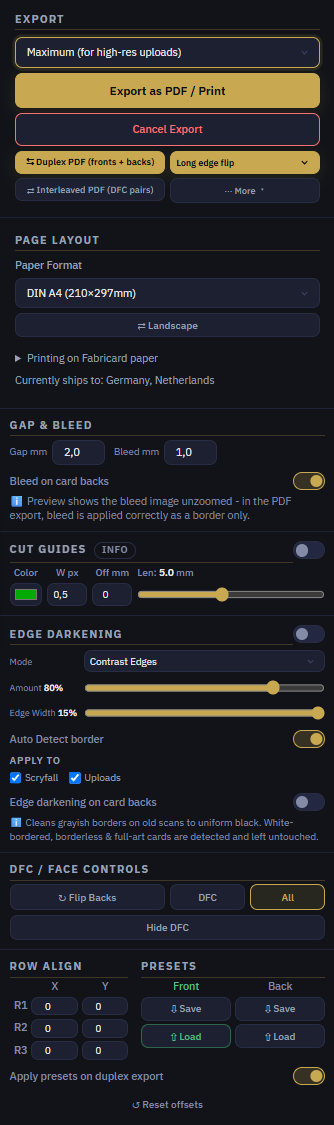
During duplex export, Fabricard applies the saved Front preset to the front pages and the saved Back preset to the back pages automatically. The screenshot shows the current sidebar values, not the contents of those saved presets.
The workflow: print, dry, cut strips, punch
Export one duplex PDF
In Fabricard, use Duplex PDF (fronts + backs). With Apply presets on duplex export on, the Front/Back presets apply automatically.
Print the first side
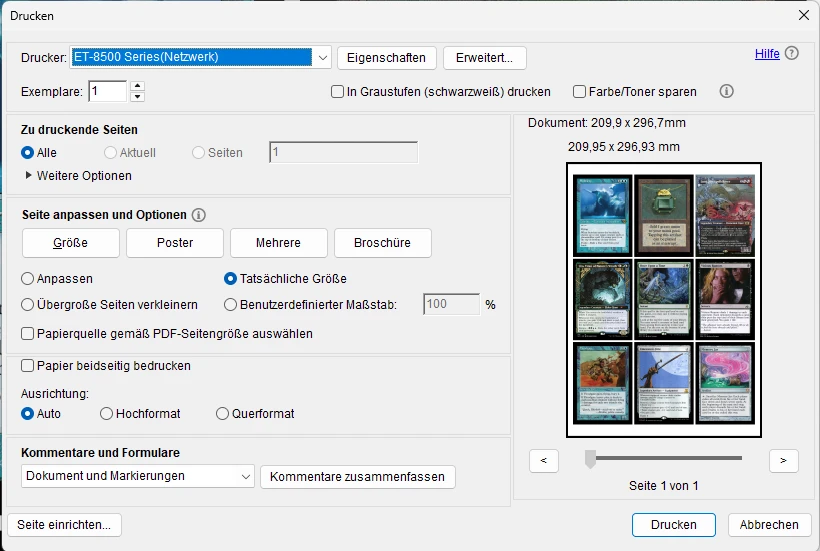
Open the PDF and select the driver preset "Epson Ultra Glossy". In the PDF print dialog, choose Tatsaechliche Groesse (actual size, 100 percent) and keep Papier beidseitig bedrucken (duplex printing) OFF. Use the rear paper feed, one sheet at a time.
Dry the first side, then print the back
Let the first side dry completely before printing the back. To check how to reinsert the sheet, follow the one-sheet test in the duplex guide. Print a test sheet before a larger run.
Let the prints dry
Leave the prints to dry for 12 to 24 hours before cutting, stacking or sleeving. Do not touch the printed surface immediately after printing.
Cut the sheet into strips
I cut the dry sheet into strips of three cards each with a Dahle 507 rotary trimmer so they fit into the die cutter. Cuts between the rows leave the final edges to the die cutter.
Punch the cards
One stroke per card in the die cutter: 63 x 88 mm with rounded corners. No lamination is needed.
Printing on HOLO Prism 343
I use the same settings for Fabricard HOLO Prism 343. It has a holographic front and a matte white back. A desktop inkjet has no white ink, so white areas in the image stay holographic on the front.
Check your scale before punching a batch
Before punching the batch, measure a printed card with a ruler: it must be 63 x 88 mm. If it is not, check that the PDF print dialog uses actual size at 100 percent, with fit-to-page and shrink-to-fit disabled.
Which printers do these settings fit?
The ET-8500 is my tested reference. Other Epson EcoTank printers may use similar driver labels, but that does not establish that they can feed this cardstock. Use my values only as a starting point for a test sheet on another model.
The cardstock needs an inkjet printer that handles thick media and has a straight or rear paper path. Before buying, check the maximum media thickness supported by your printer. On a non-Epson printer, the setting names may differ.
Material limits
- Inkjet use only. I give no guarantee for laser printers.
- The cardstock is not waterproof.
- No lamination is needed.
Troubleshooting
- Smudging: let the prints dry longer and avoid touching the printed surface.
- Feed problems: use the rear paper feed and insert one sheet at a time.
- Misaligned or upside-down backs: use the duplex guide to check feed orientation, flip edge and Row Align.
- Wrong card size: repeat the scale check above.